 Shorts
How it works
A step-by-step guide to publishing your first video with ShortsPost.
1. Connect your TikTok account
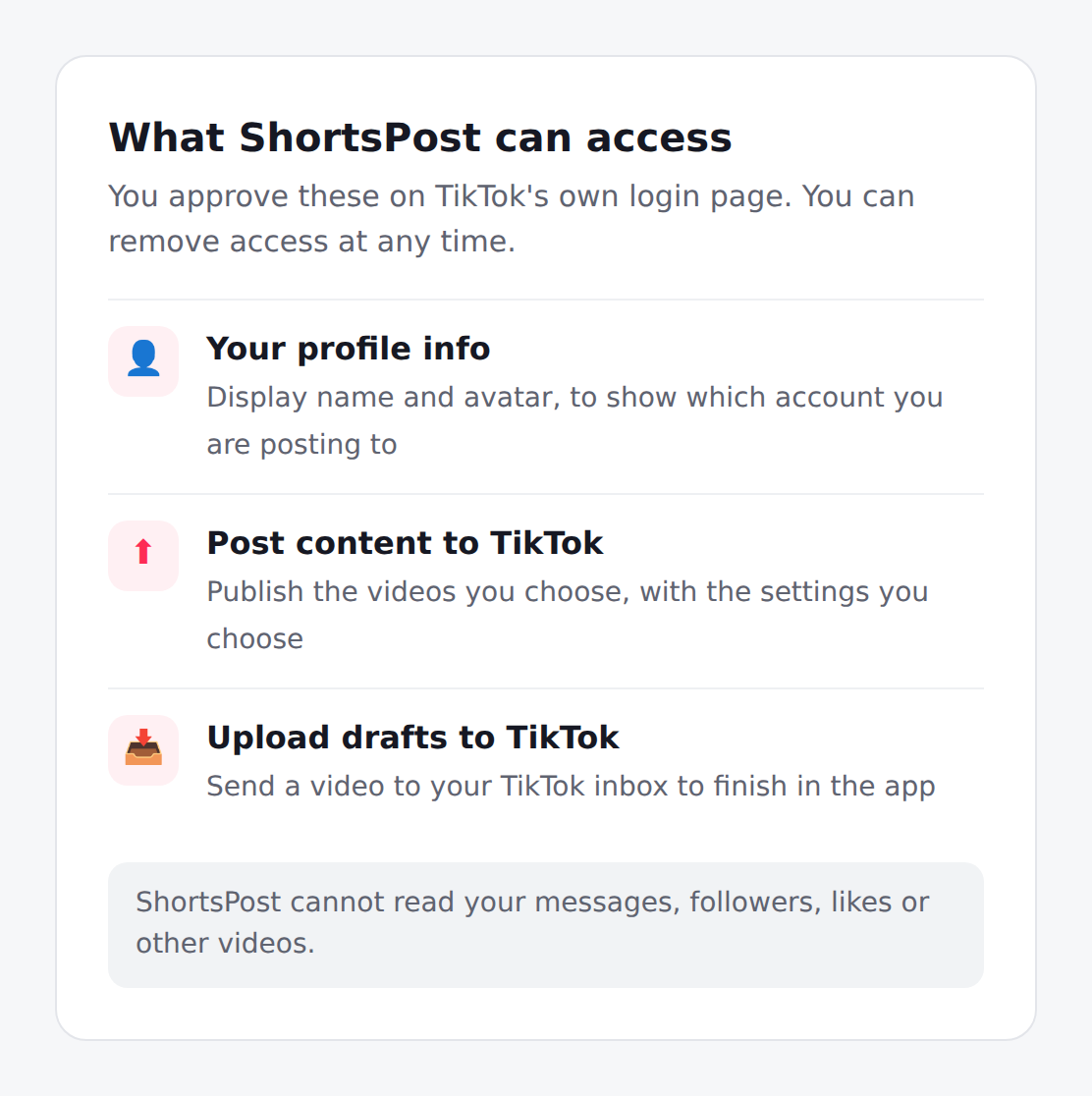
Click Log in with TikTok. You are taken to TikTok's own authorization page, which lists exactly what ShortsPost will be able to do. Review it and press Continue. You come back to your ShortsPost dashboard, which shows your TikTok name and avatar so you know which account you are posting to.
2. Choose a video
On the dashboard click Choose file and select an MP4 or MOV video. A preview appears together with its length and the maximum length your account allows.
3. Choose how to publish
- Post to my profile: you set everything on ShortsPost and the video is published to your profile.
- Send to TikTok as a draft: the video goes to your TikTok inbox and you finish and post it in the TikTok app.
4. Caption, privacy and interactions
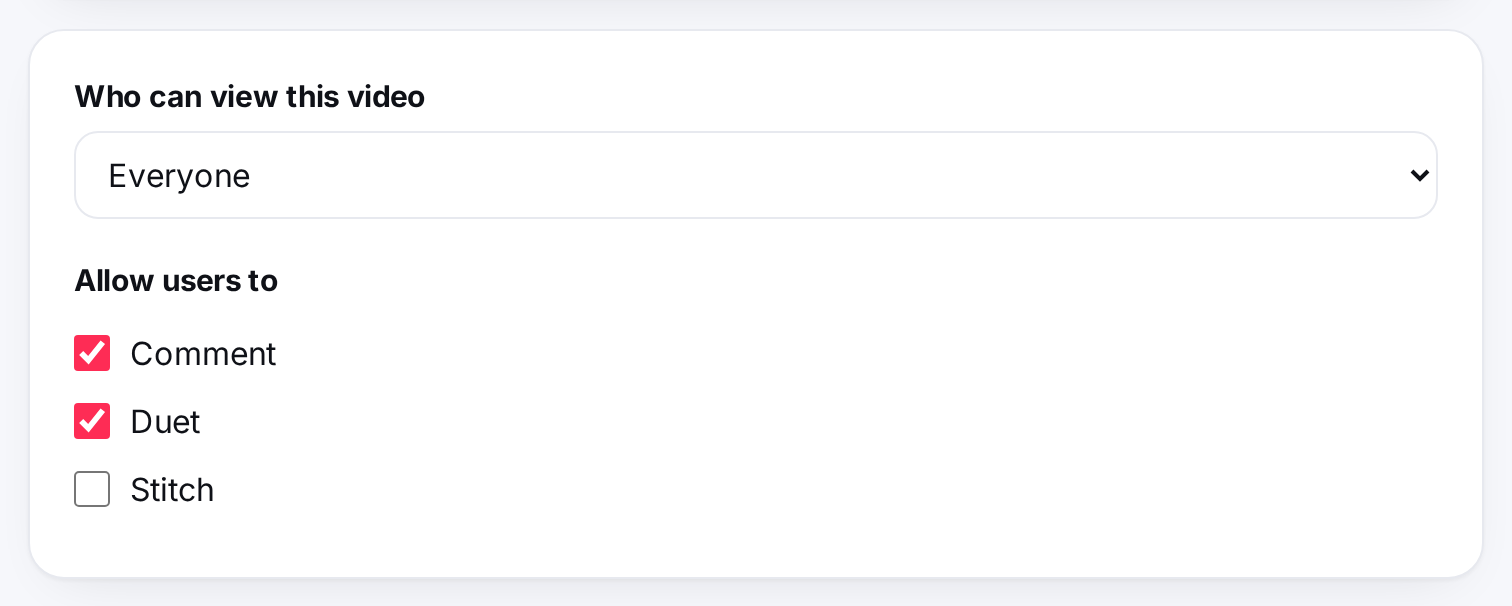
For a direct post, write a caption, pick who can view the video and choose whether to allow comments, Duet and Stitch. Nothing is selected for you: you choose every setting.
5. Disclose commercial content if needed
If the video promotes a brand, product or service, turn on Disclose video content and choose Your brand, Branded content or both. TikTok will label the post accordingly.
6. Post now or schedule
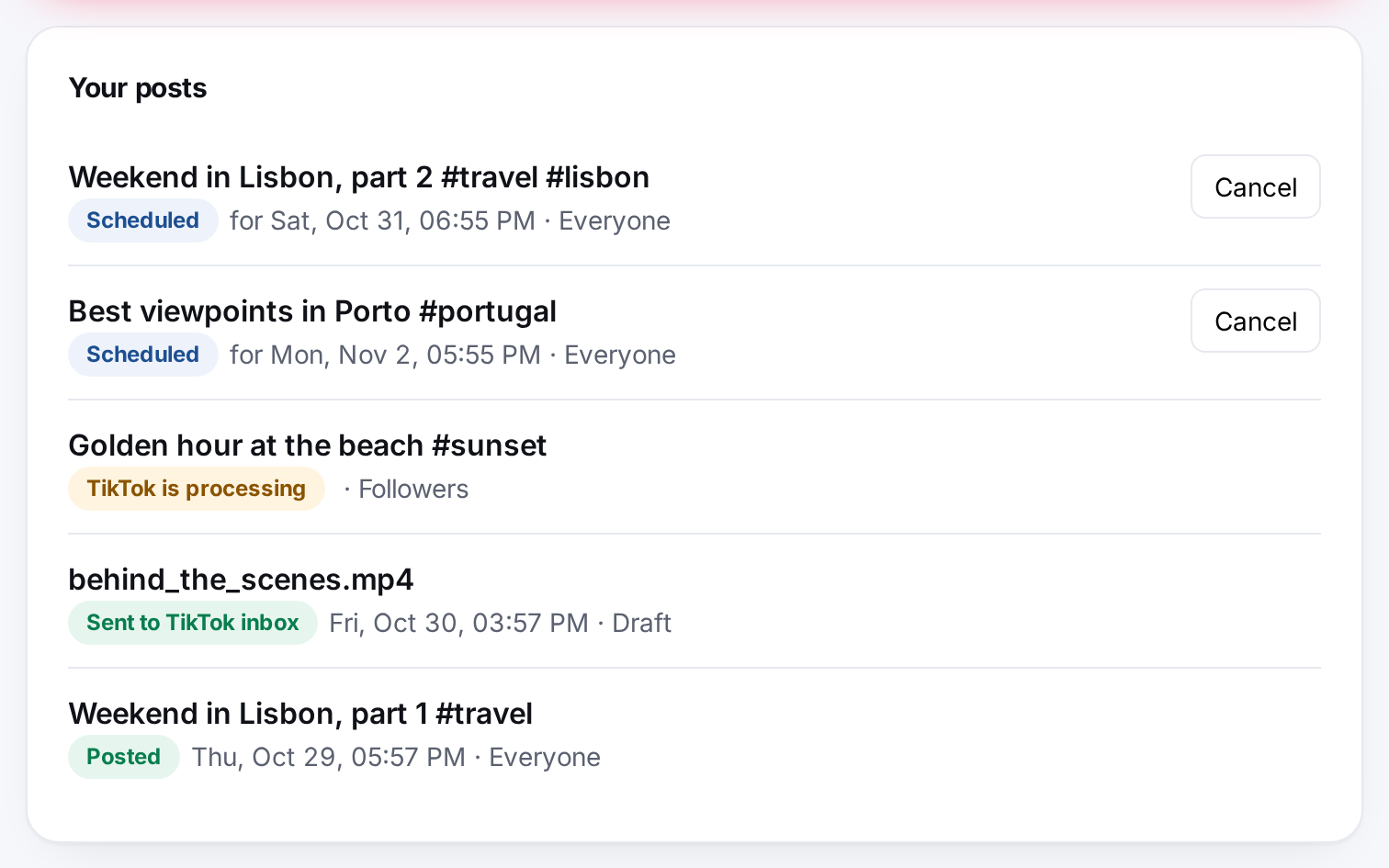
Choose Post now, or Schedule for later and pick a date and time. Press the button to confirm. The video appears in Your posts, where you can follow its status or cancel it if it is scheduled.
7. Log out or disconnect
Log out ends your session in this browser; your scheduled posts are still published. Disconnect revokes ShortsPost's access with TikTok and deletes your scheduled posts, files and tokens. You can also remove access in the TikTok app under Settings and privacy → Security and permissions → Apps and services.